How to Submit Your Cookies
To post on Twitter on your behalf, this website controls a regular browser - just like you would do manually. To set this up, you need to hand over your Twitter login session ("cookies" - a small piece of data your browser saves to keep you logged in) once. After that, everything runs automatically.
In the very unlikely case that your account still has API access, see the old tutorial.
- This method has been running without issues since November 2024, but Twitter could potentially ban accounts that use automation - now or in the future.
- After submitting your cookies, do not log out of Twitter - logging out will break the bot. Instead, just clear your cookies following the last step.
Step-by-step instructions
These instructions use Firefox because the bot also runs inside Firefox when posting on your behalf. Using the same browser makes your login appear more natural, which reduces the risk of your account being flagged.
- Install Firefox
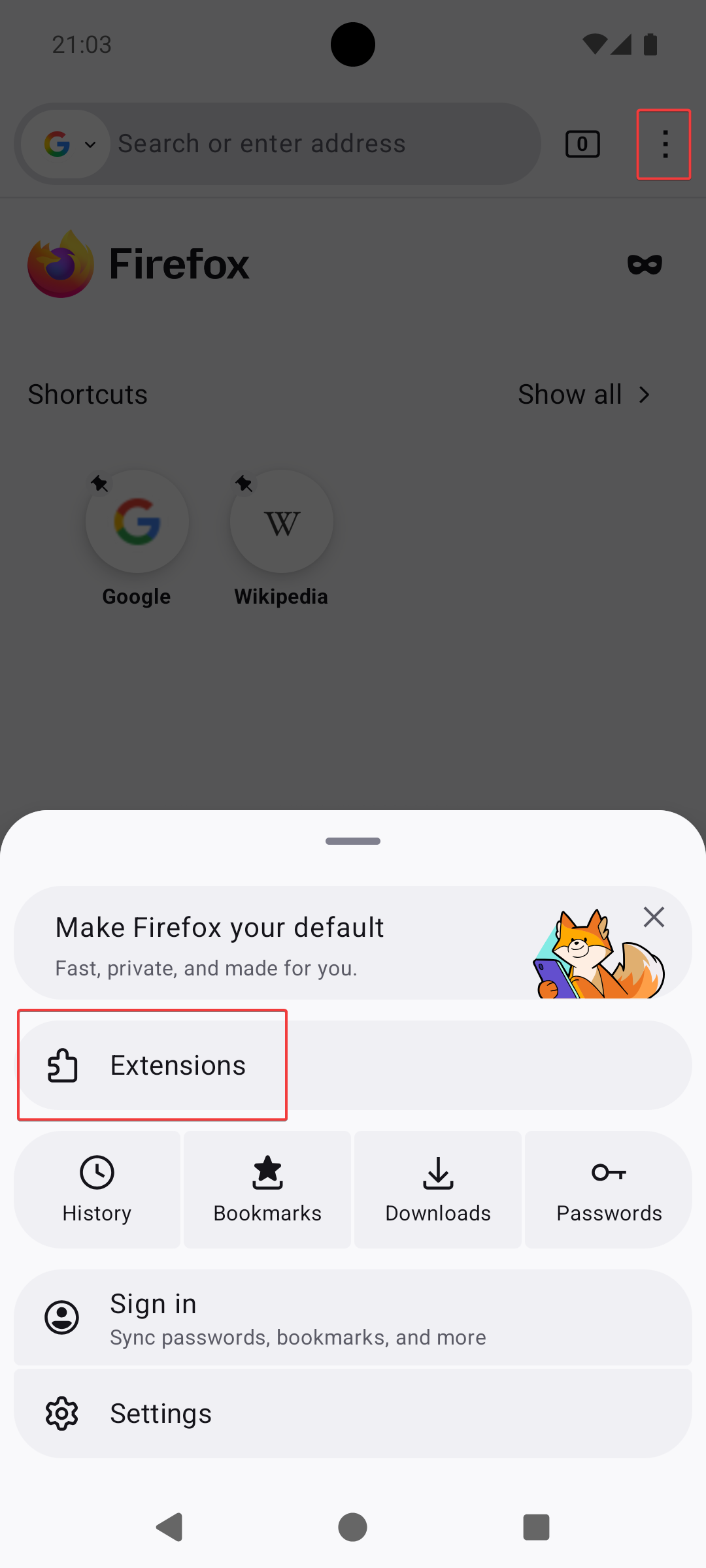
Download and install Firefox. If you already have it, skip this step. - Install the Cookie-Editor add-on
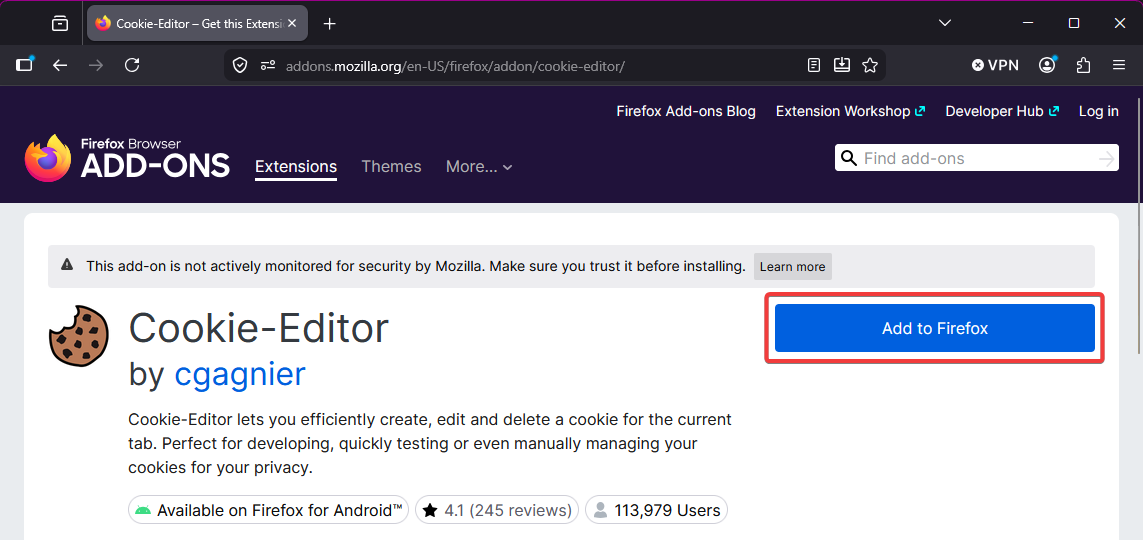
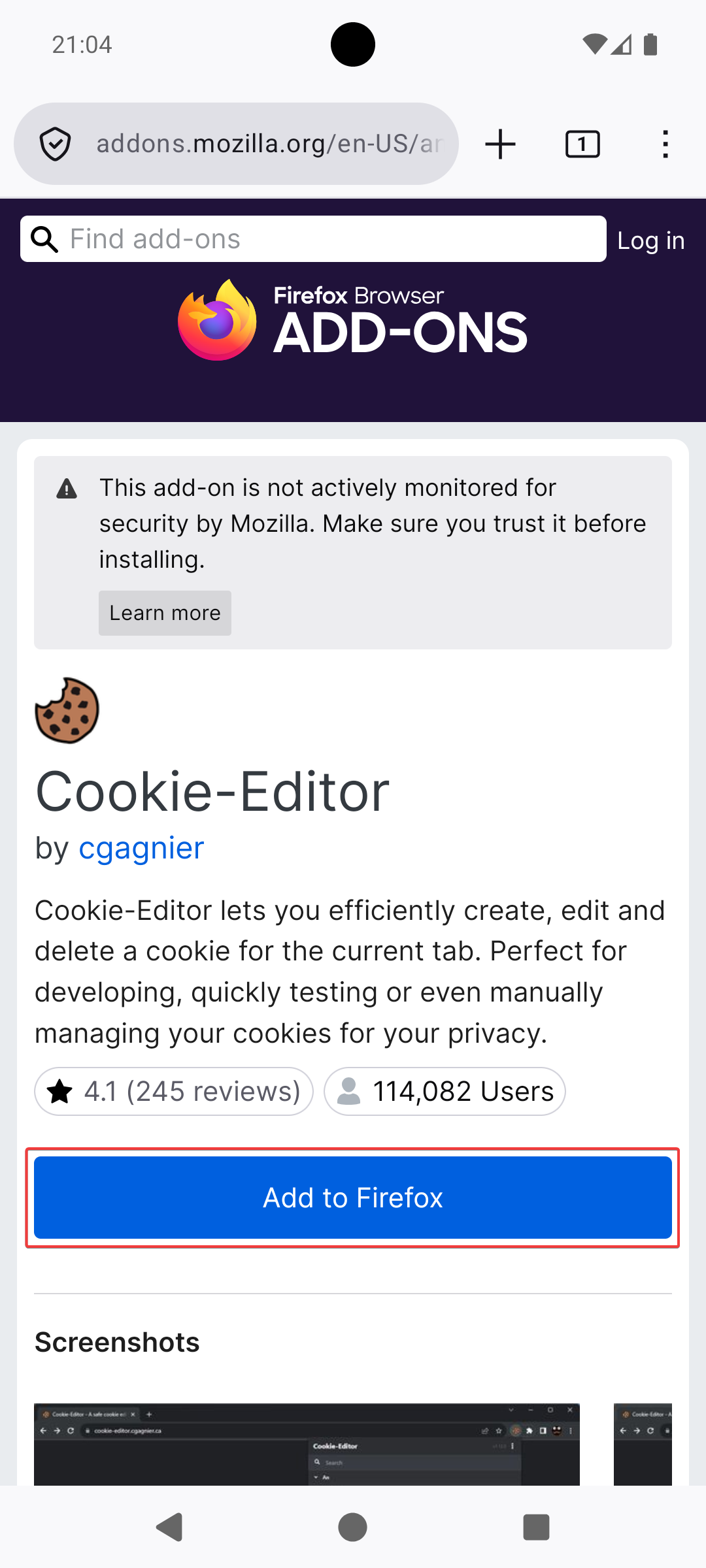
- Open this link in Firefox and click the Add to Firefox button.
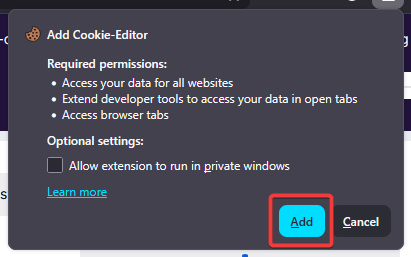
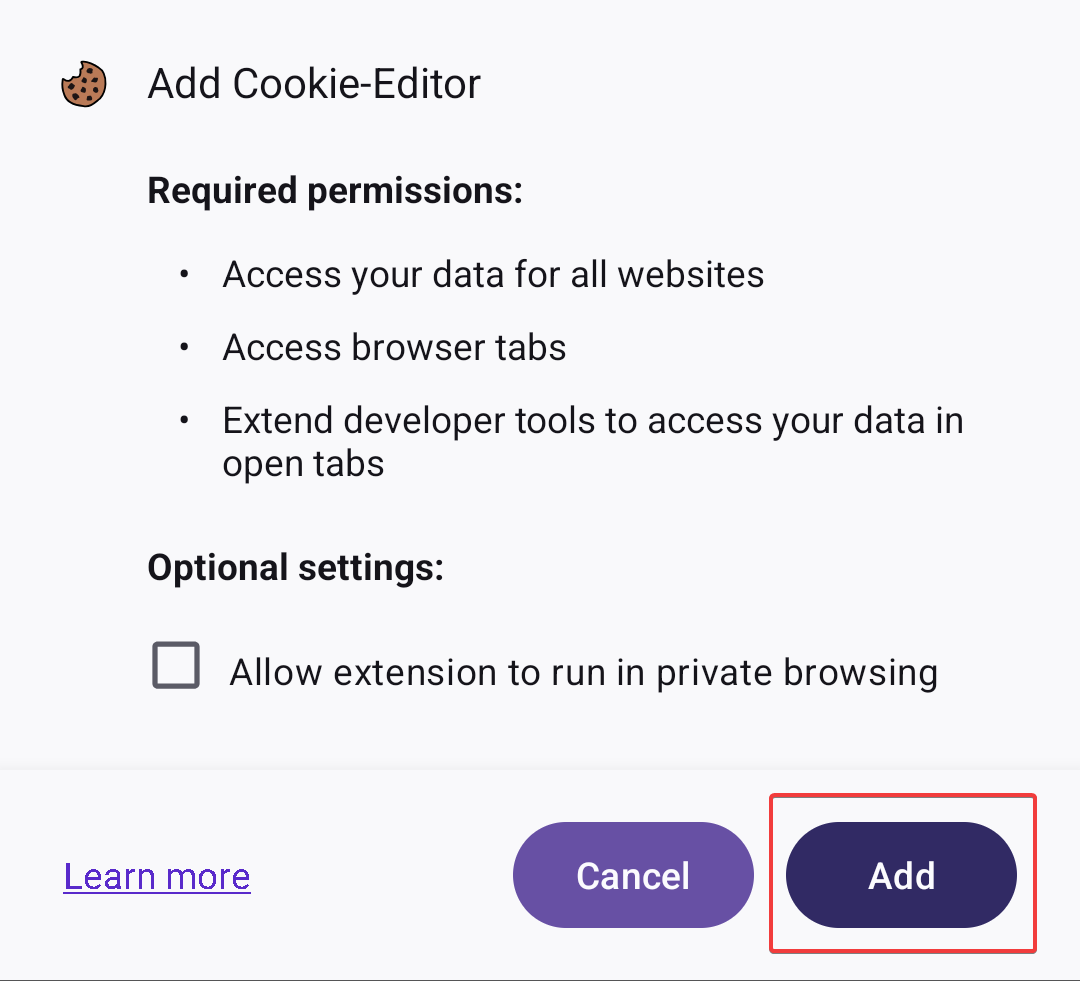
- In the dialog that appears, click Add to confirm.
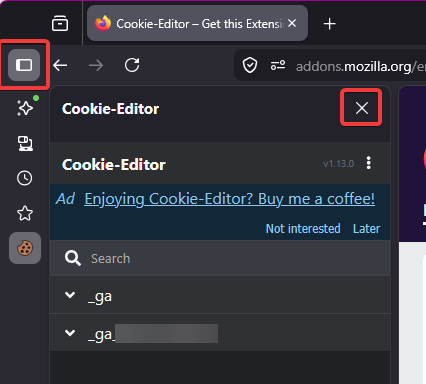
- Cookie-Editor might then open in a sidebar - you can close it again using the button in the top left of Firefox.
- Log in to Twitter
Go to twitter.com in Firefox and log in to your account. - Export your cookies
- Make sure the Twitter tab is active.
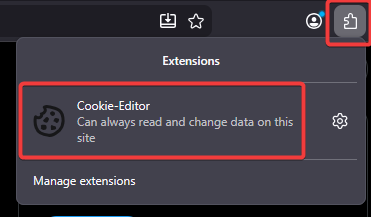
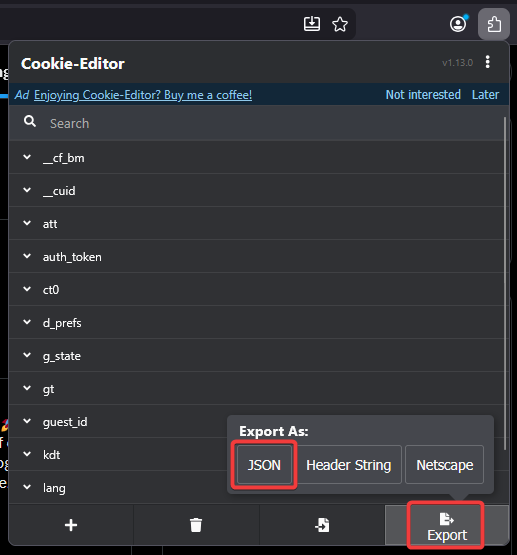
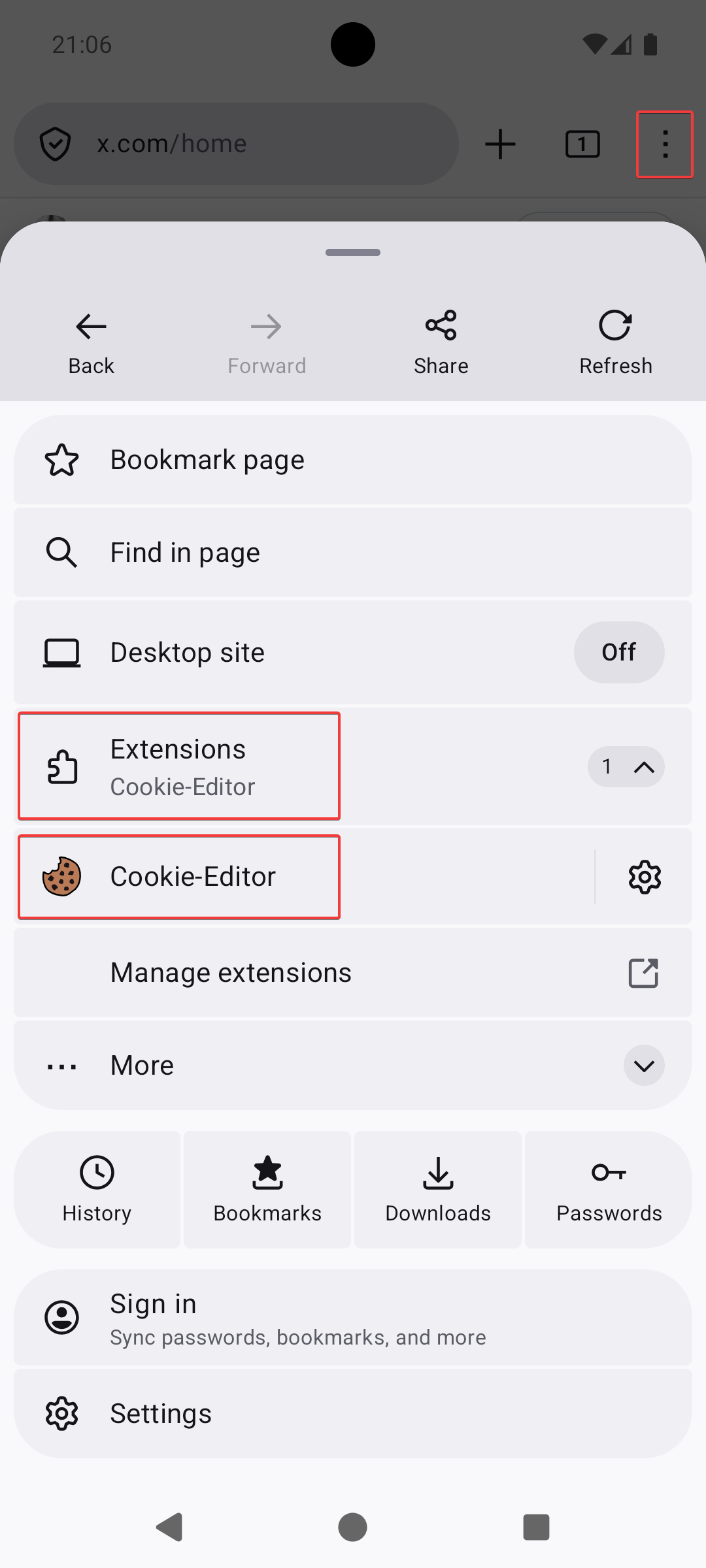
- In the top-right toolbar of Firefox, click the puzzle piece icon, then click Cookie-Editor.
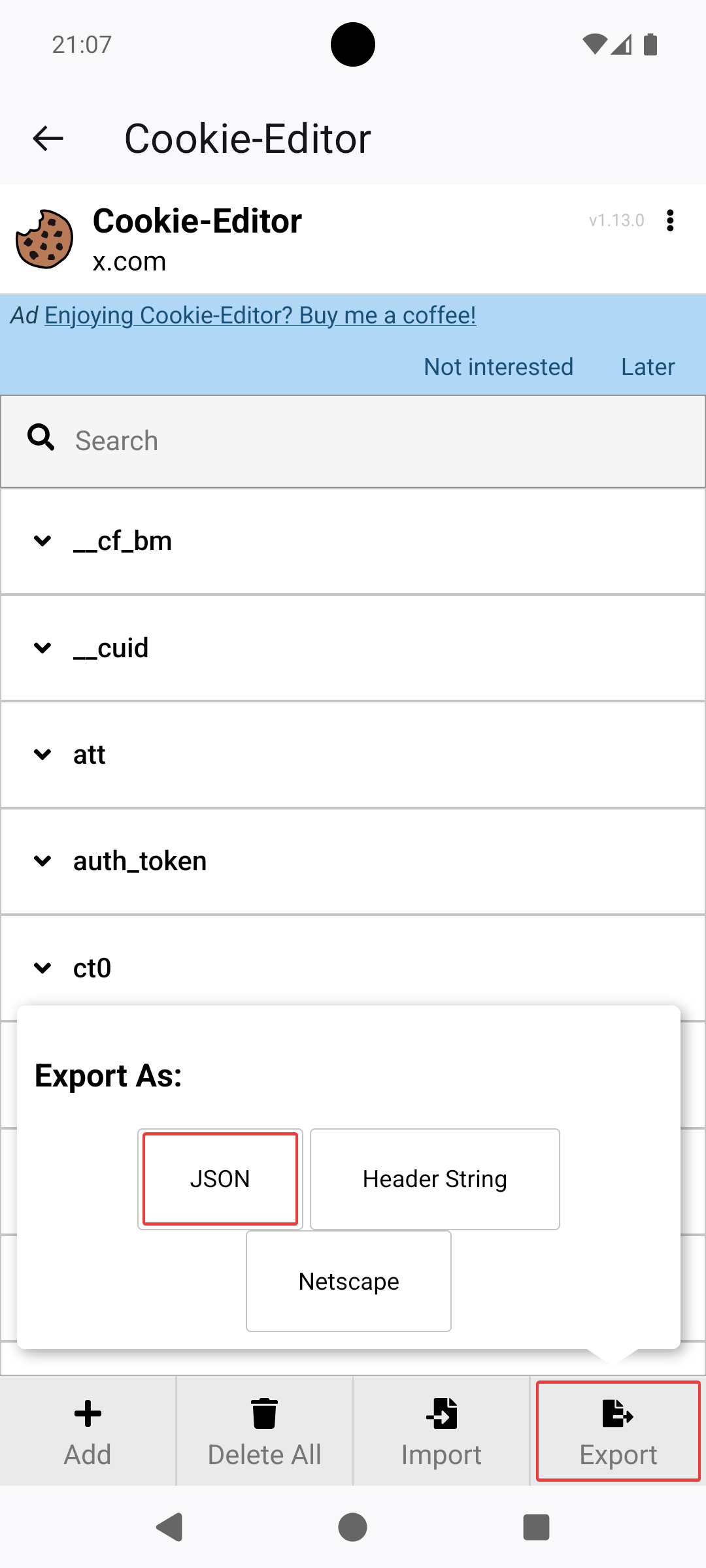
- Click Export → JSON.
- Your login data is now copied to your clipboard automatically.
- Open bot settings
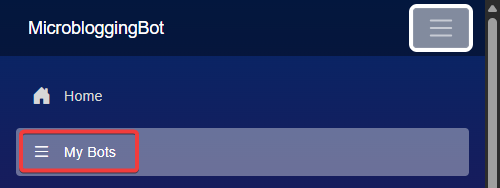
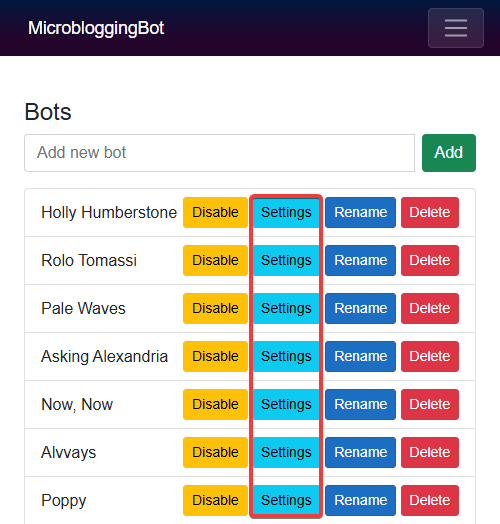
Come back to this website, click My Bots in the left menu. If you don't have a bot yet, add one first. Then click Settings on the bot you want to set up.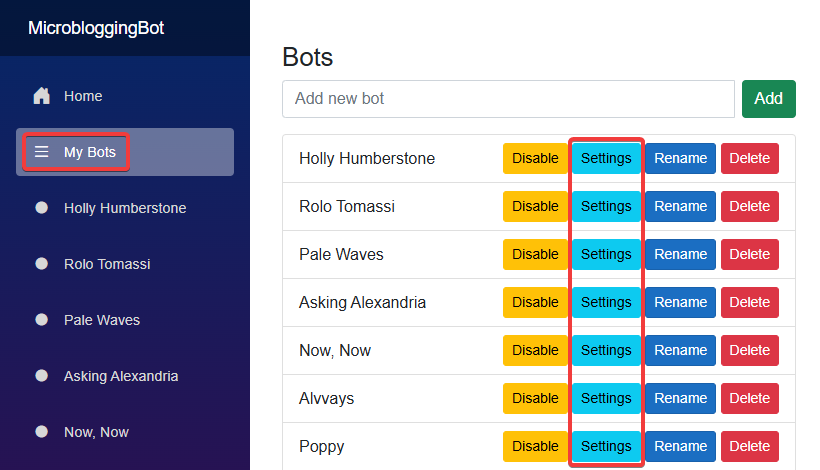
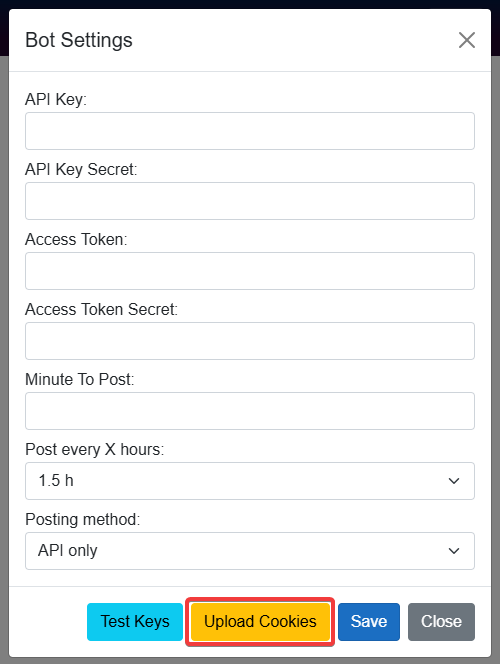
- Click the Upload Cookies button
In the settings window, scroll down and click the Upload Cookies button.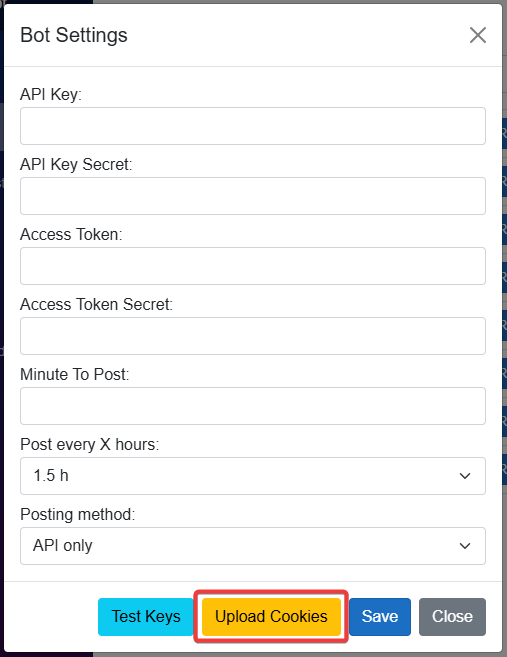
- Paste and save
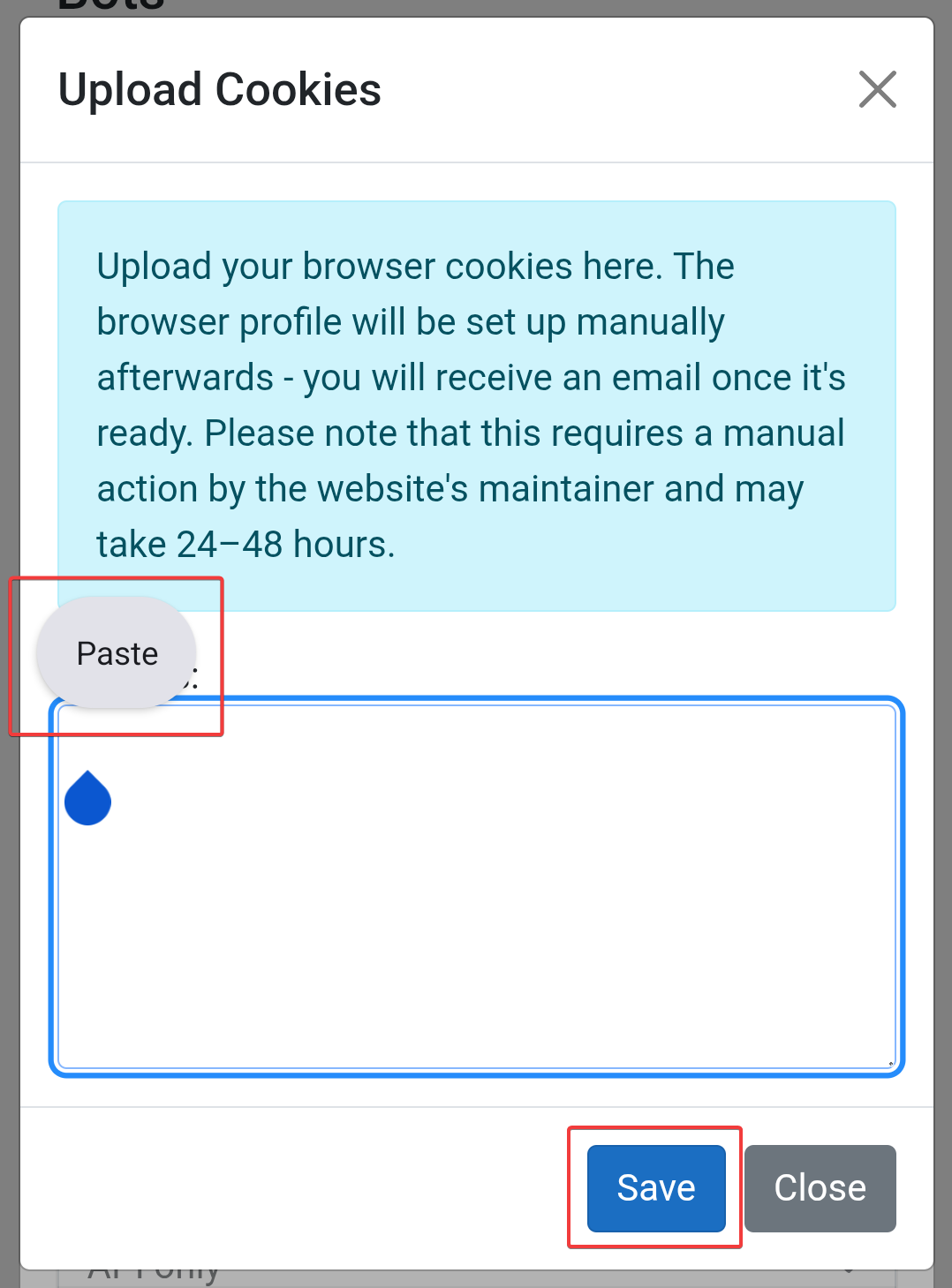
Paste (Ctrl+V on Windows, Cmd+V on Mac) the copied data into the text field and click Save.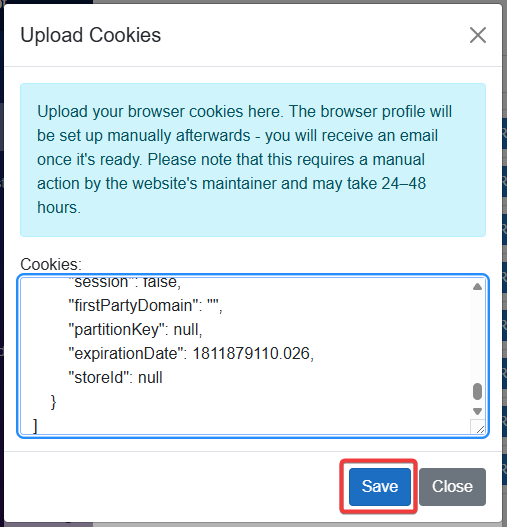
- Clear your cookies in Firefox - do this right away!
Do not log out of Twitter - logging out will break the bot. Clear your cookies instead (see below).- Make sure you are on the Twitter tab, so the cookies are cleared for the right website.
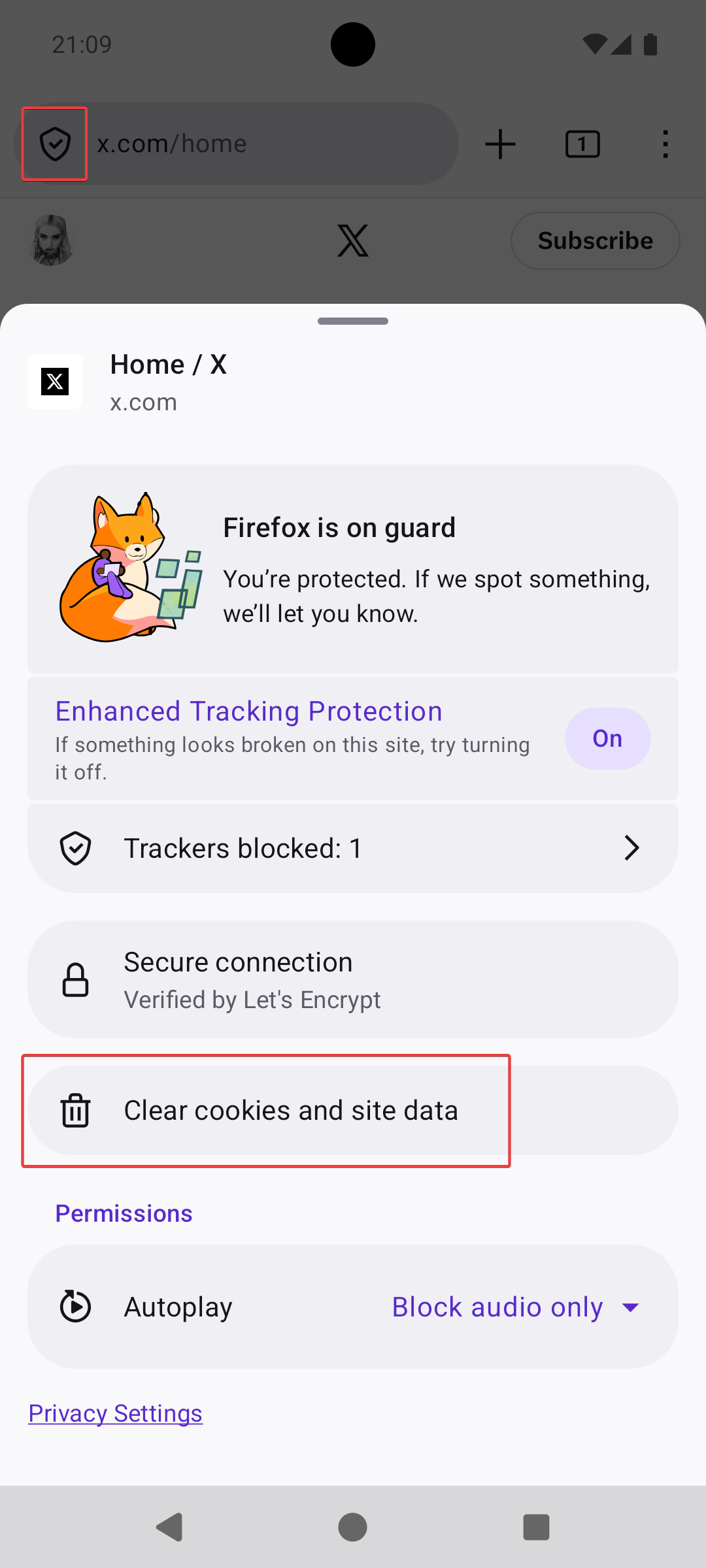
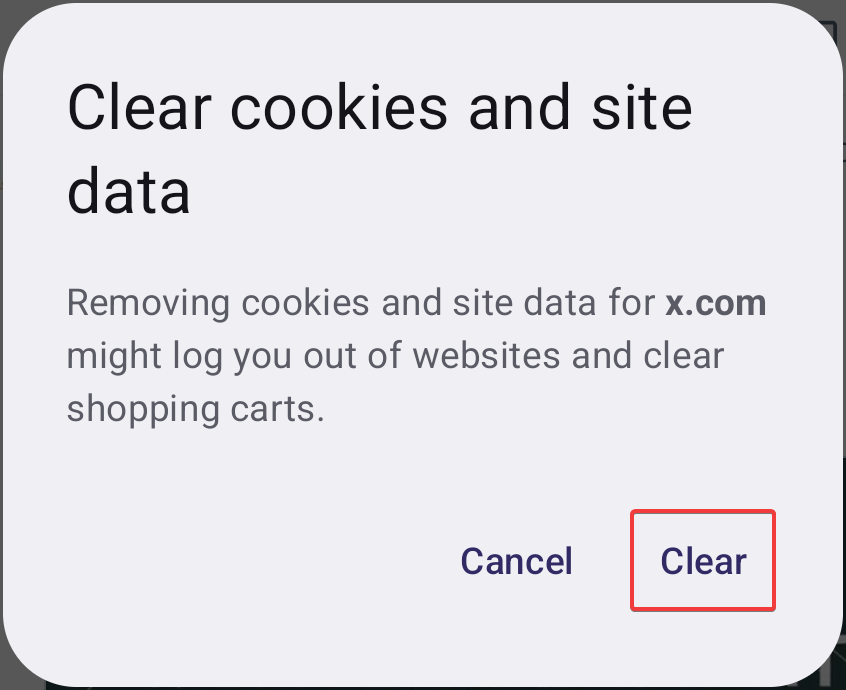
- Click the small shield icon in the address bar, then click Clear cookies and site data → Clear.
- Close the Twitter tab.
If you accidentally logged out of Twitter instead, just repeat this process from step 3.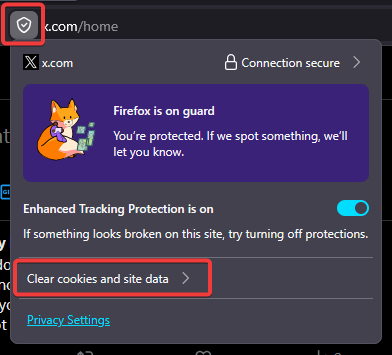
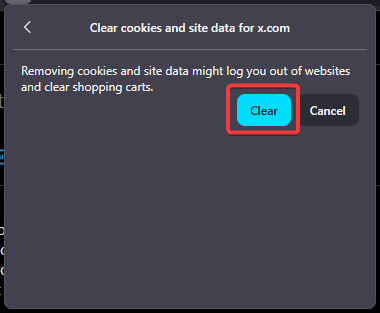
- Wait for setup
That's it for now - the maintainer will set everything up manually and let you know when your bot is ready to go. This usually takes 24-48 hours.
Why do I need to clear my cookies?
This makes sure Twitter isn't being used from two places at once - which could get your account flagged.
How long do the cookies last?
Cookies don't last forever - they typically need to be renewed after around 12 months. You don't need to keep track of this yourself; you will be contacted when it's time to repeat the process.